How to show up on Google in Uppsala: Google Business Profile step by step
How to get your business seen on Google Maps and in local searches in Uppsala. A simple guide to Google Business Profile – from setup to reviews.
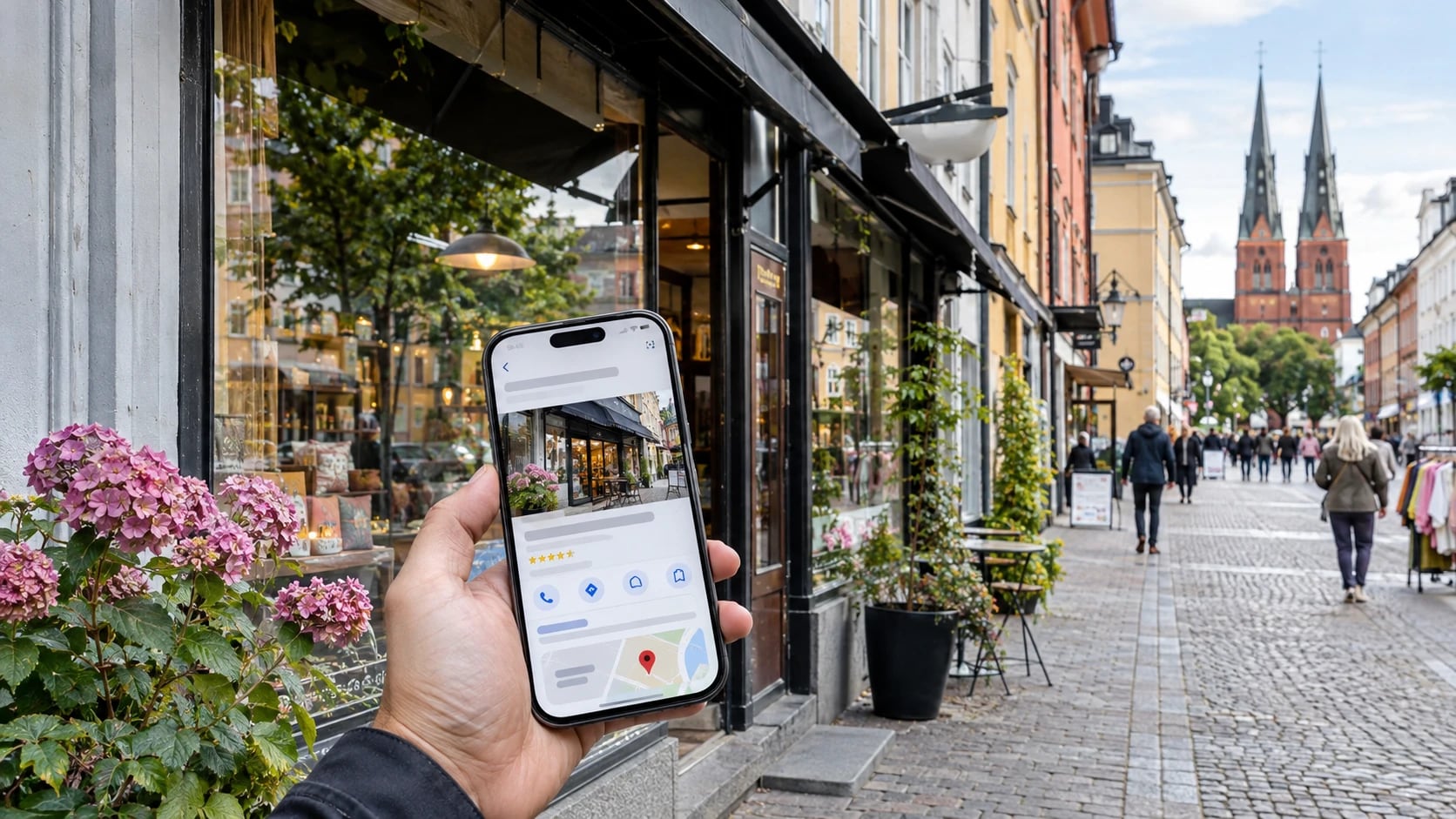
When someone searches for “hairdresser Uppsala” or “plumber near me”, Google first shows a map with three businesses. Getting there is often worth more than ranking first among the ordinary results – and the way in is a free Google Business Profile. Here is how to get started.
What is a Google Business Profile?
It is your business's card on Google: name, address, opening hours, phone, photos and reviews. It appears in Google Maps and on the right of the results when someone searches for your name. For a local business in Uppsala it is often the first thing a customer sees – before the website.
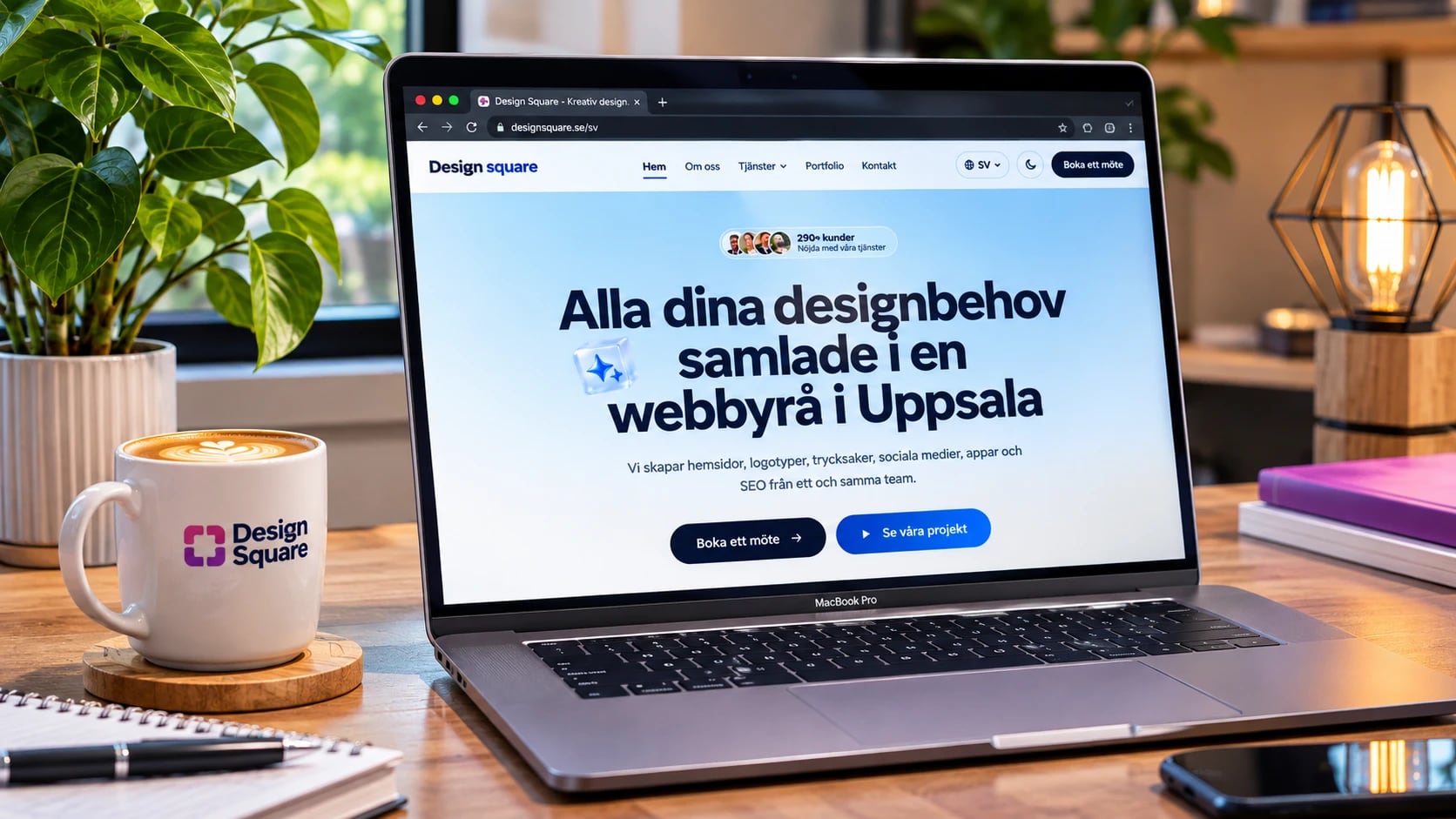
Take our own profile as an example: open Design Square's address in Uppsala on Google Maps and you will see the name, address, opening hours, phone and reviews in one place. That is how your business can look too once the profile is filled in.
Step 1: Create or claim the profile
Go to google.com/business and sign in with the business's Google account. Search for your business name – Google may already have created a profile automatically. In that case, claim it instead of creating a new one.
Step 2: Choose the right main category
The category is one of the most important things for where you appear. Choose the one that describes what you do as precisely as possible, for example Driving school or Cleaning service. Then add a few more categories for other services.
Step 3: Address or service area
If customers come to an address, enter it. If you go to the customers, like a cleaning company or a tradesperson, list the places you work in instead, for example Uppsala, Knivsta and Enköping.
Step 4: Verify the business
Google wants to know the business is real. Depending on the business, this is done with a code by postcard, text message, email or a short video showing the premises. The profile only shows properly once it is verified.
Step 5: Fill in everything – properly
A half-finished profile loses to a complete one. Fill in:
- Opening hours – and update them for public holidays
- Phone and website – ideally linking to the right page, for example booking
- Services and prices – using the words customers actually search for
- A description – what you do, for whom and where
- Photos – the premises, the team and your work. Real photos make a big difference
Step 6: Keep customers happy and collect reviews
It all starts with happy customers: keep your promises, be easy to reach and ask how the visit went. Then encourage customers to share their thoughts and opinions on your profile – with a review, a photo or a question. Google takes the number of reviews and their rating into account when it decides which businesses to show, and a profile where customers are active shows that the business is alive.
Reviews affect both your ranking and whether a customer chooses you. Ask happy customers for a review right after the visit – a link in a text message or a QR code at the counter makes it easy. Reply to every review, including the critical ones, calmly and factually.
Step 7: The same details everywhere
Name, address and phone should be written exactly the same on Google, on your website, on Facebook and in directories such as Hitta.se and Eniro. Different details make Google unsure which ones are right.
Step 8: Keep the profile alive
Post an update or an offer now and then, add new photos and answer questions. A profile that is kept up to date shows both Google and customers that the business is active.
The profile and the website work together
Your Google Business Profile helps customers find you – your website makes them choose you. Link the profile to a fast website with clear services, prices and a booking button, and you cover the whole way from search to customer. Want help with both? Read about our SEO & GEO service or book a meeting.